
Our HAUC(UK) app works offline. How it works will depend on which device, operating system or browser you’re using – you will need to accept cookies for the best results.
We update the HAUC(UK) app regularly, particularly the Alerts and Documents section. When you use the app with a phone signal or WiFi connection, you’ll always see the latest content. But this quick guide will give you the best results when you can’t get online, too.
Installing the app
For the best experience, we recommend that you install our native app. To do this, follow the instructions below according to your device type:
Android devices
For the best experience on Android, install our native app from the Google Play Store:
Install our web app from Google Play Store
iOS devices
For the best experience on iOS, install our native app from the Apple App Store:
Install our web app from Apple App Store
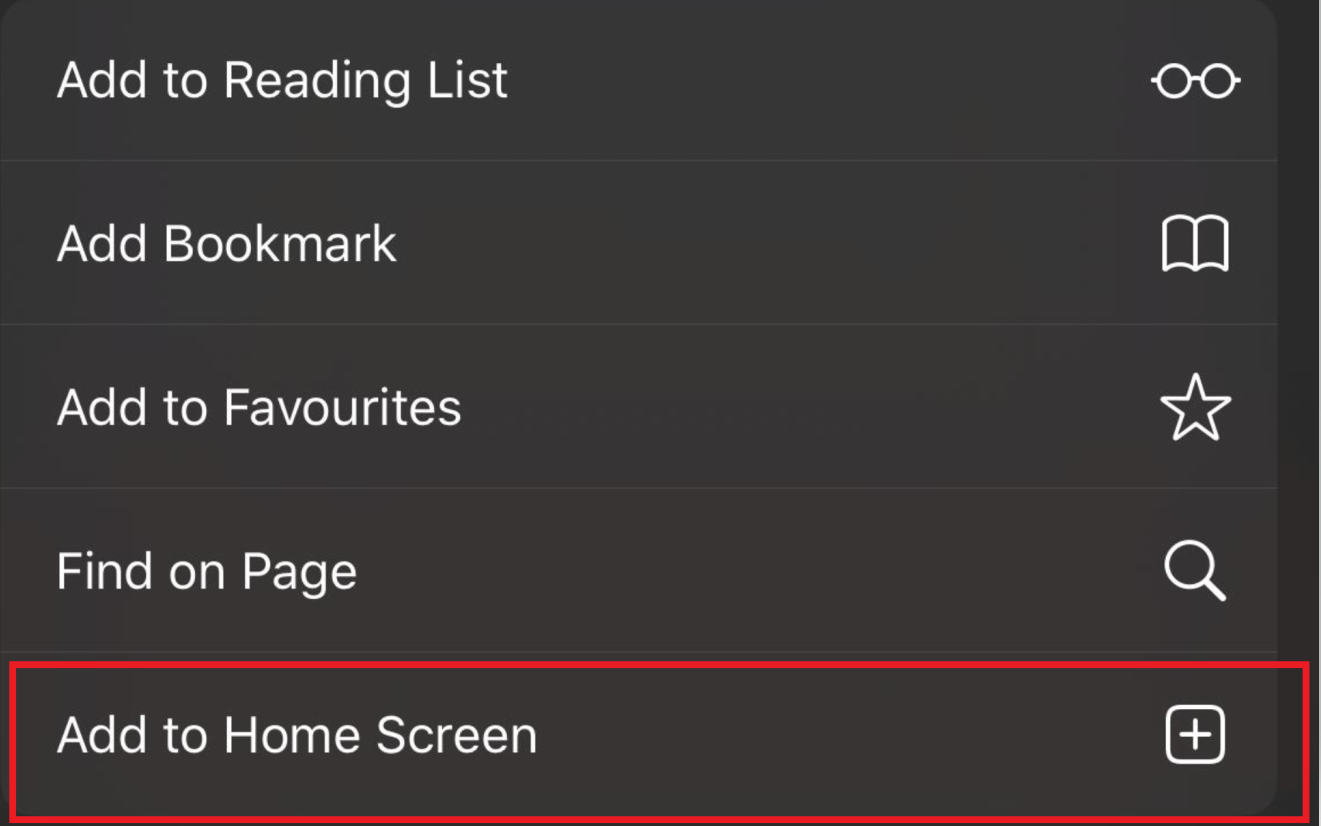
Alternatively, you can install the HAUC(UK) app manually on iPhones.
- At the bottom of your browser screen, tap the share icon.

- Scroll to the bottom of the list and tap [ Add to Home Screen ]
Windows devices
On Windows, use the button labelled 'Install the HAUC app' at the foot of this screen.
Push notifications
At the foot of each page, you may see a button labelled "Stay safe, stay up to date, enable notifications". This invites you to enable push notifications on your device, which will keep you as up to date as possible. (If you have already enabled push notifications from HAUC on your device, this button will no longer be shown.)
At the moment, iPhones don’t support push notifications, but the app will update automatically when you next find some signal or WiFi.
Enable offline data storage
The HAUC(UK) can, if you consent, store its content on your device for offline use. At the moment, it’s under 100MB of storage. Please use the button 'Cache content for offline use' at the foot of this page to give your consent for this offline storage.
